AIMochi MCP Server: Let Claude Code and Cursor Read Your Meeting Notes (Setup Guide)
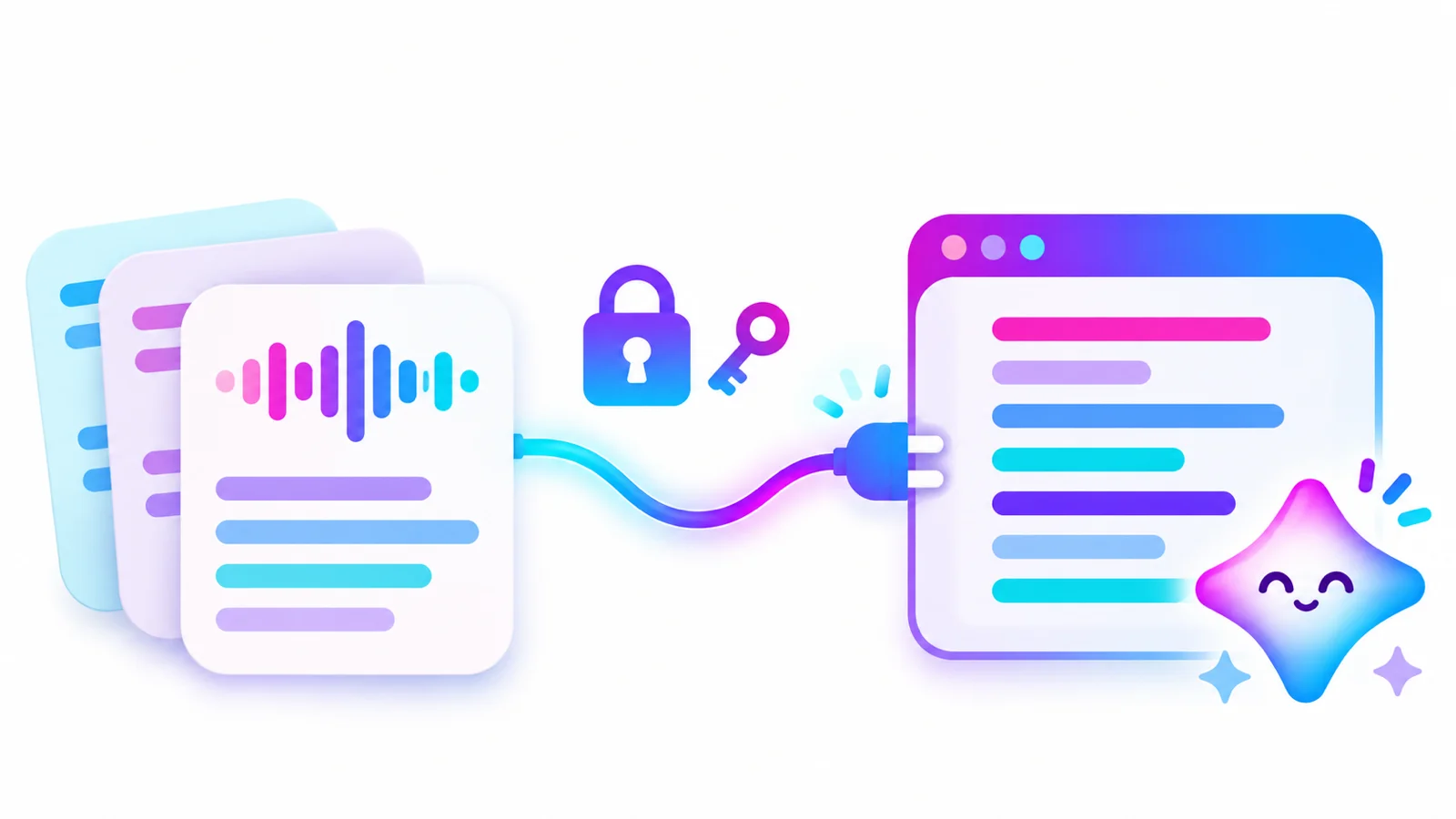
AIMochi now supports MCP (Model Context Protocol). Sign in to app.aimochi.ai/settings, create a personal access token under AI Tool Connections (MCP), then add the MCP endpoint https://api.aimochi.ai/mcp and your token to Claude Code or Cursor. Your AI tool can then list, search and read your AIMochi notes directly. The connection is read-only: AI tools cannot change or delete your notes. When you record a meeting, interview or lecture with AIMochi on LINE, your AI tool can use the resulting notes to draft specs, organise requirements or answer questions, without you copying and pasting the transcript.
What is MCP, and what does it have to do with AIMochi?
MCP (Model Context Protocol) is an open standard that Anthropic introduced in November 2024 for connecting AI applications to outside data and tools in a consistent way. An AI tool that supports MCP, such as Claude Code or Cursor, can connect to a service's MCP server and then call that service's tools on its own during a conversation to fetch the data it needs.
AIMochi's MCP server lives at https://api.aimochi.ai/mcp. It uses the Streamable HTTP transport and authenticates you with a personal access token. Once connected, your AI tool gains an "AIMochi notes library" it can look things up in. The server is also listed in the official MCP Registry as ai.aimochi/notes.
What AI tools can do: three read-only tools
| Tool | What it does |
|---|---|
list_notes | Lists your notes |
search_notes | Searches your notes by keyword |
get_note | Reads the content of a specific note |
All three tools are read-only. An AI tool cannot create, edit or delete any of your notes through MCP; you still create and edit notes in LINE or in the AIMochi web app.
Setup steps
Step 1: Create a personal access token. On a computer, open https://app.aimochi.ai/settings and sign in. Find the AI Tool Connections (MCP) section (labelled 「AI 工具連線(MCP)」 in the Chinese interface) and click the + button at the top right to create a token. The name is only there to help you remember where the token is used, for example "Claude Code" or "Cursor".
Step 2: Copy and store the token straight away. The token is shown only once. After you close the window you cannot view it again; if you lose it, revoke it and create a new one.
Step 3: Add the endpoint and token to your AI tool. The "how to connect" part of the settings page has ready-made commands to copy. Replace <token> with the token you just created.
Claude Code: run one command in the terminal
claude mcp add --transport http aimochi https://api.aimochi.ai/mcp --header "Authorization: Bearer <token>"Afterwards, type /mcp inside Claude Code to see the connection status of the aimochi server. By default the command uses the local scope: it applies only to you in the current project directory, and the setting is stored in your own ~/.claude.json. To use it in every project, add --scope user. Do not use --scope project: it writes the setting, token included, to .mcp.json in the project root, where it can easily be committed to Git along with your code. See the Claude Code MCP documentation for details on scopes.
Cursor: add it to mcp.json
{
  "mcpServers": {
    "aimochi": {
      "url": "https://api.aimochi.ai/mcp",
      "headers": {
        "Authorization": "Bearer <token>"
      }
    }
  }
}
Put this in the user-level ~/.cursor/mcp.json rather than in a project folder that gets committed to Git (the project-level .cursor/mcp.json). Save the file, restart Cursor, then check in the MCP settings that aimochi is connected. If the connection fails, choose MCP Logs in the Output panel to see why. Where the settings live may vary between Cursor versions; see the Cursor MCP documentation.
What you can do once connected
The whole flow is: send a recording to AIMochi in LINE → AIMochi creates a transcript and a summary → your AI tool reads both over MCP. A few practical uses:
- Turn meeting decisions into a spec: in Cursor, say "Search my notes from last week's requirements interview with the client, turn them into a feature list and write it to docs/requirements.md". The AI calls
search_notesandget_noteitself to find the content, then organises it. - Check past discussions while you build: before implementing a feature in Claude Code, ask it to read the relevant product meeting notes and confirm what was decided about edge cases, so fewer conversations end in "that's not what I remember us agreeing".
- Find common themes across interviews: for user research or reporting, have the AI read several interview transcripts at once and pull out the pain points and quotes that keep coming up.
- Draft from lectures and classes: give AIMochi the recording of a talk or course, then ask the AI to write an article outline, a slide structure or study notes from it.
AIMochi detects the language automatically (more than 99 languages), tells apart up to 10 speakers, and transcribes a one-hour recording in about 10 minutes. The more complete your notes, the more your AI tool has to work with. If you are new to AIMochi, start with the tutorial and What are AI notes?
Token safety: treat it like a password
The token is read-only, but anyone who has it can read all of your notes. Keep these in mind:
- Don't leak it: never paste your token into a chat or document, include it in a screenshot, or commit it to a Git repository.
- One token per tool: create a separately named token for each tool. The settings page shows when each token was last used, which helps you tell whether it is still needed.
- Revoke what you don't use: revoking takes effect immediately; any AI tool using that token can no longer read your notes, and this cannot be undone. There is a limit on how many active tokens you can have, so revoke the ones you no longer need.
- Know where your notes go: once an AI tool reads a note, the content is handled by that tool and the model service behind it. For confidential meetings, check your company's rules on AI tools first.
Frequently asked questions
Q: Can I use MCP on the free plan?
Yes. Free users can also create a personal access token at app.aimochi.ai/settings and let Claude Code or Cursor read their notes. Every AIMochi account gets 3,000 free points a month (about 300 minutes of transcription) to record and build up notes; see pricing.
Q: Can an AI tool change or delete my AIMochi notes?
No. The three MCP tools, list_notes, search_notes and get_note, are all read-only, so AI tools can only read your notes.
Q: I forgot to copy the token. Can I get it back?
No. The token is shown only once, when it is created. Revoke it on the settings page and create a new one.
Q: Does it work with AI tools other than Claude Code and Cursor?
The settings page currently gives setup examples for Claude Code and Cursor. Any other MCP client that can connect to a remote MCP server over Streamable HTTP and lets you set a custom Authorization header should, in principle, work with the same endpoint and token.
Conclusion
AIMochi's MCP server gives Claude Code and Cursor read-only access to the meeting, interview and lecture notes you collect on LINE. Create a token at app.aimochi.ai/settings, then run the Claude Code command or add the configuration to Cursor, and your AI can search and read the notes it needs. If you don't have any AIMochi notes yet, add the AIMochi official account on LINE and record your first meeting with the 3,000 free points you get every month. To send voice messages from LINE, see LINE voice to text.