Note: the screenshots on this page were taken from the AIMochi LINE account, whose product UI is shown in Chinese. The steps are identical whatever language you write your notes in.
Contents
1. Quick start
With AIMochi, capturing the audio around you takes just three steps:
1. Record your voice
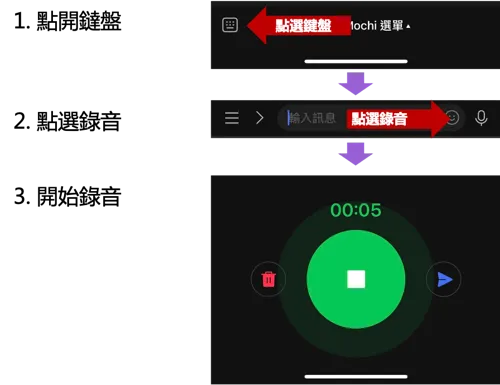
Step 1 — record your voice (product UI shown in Chinese)
2. Upload the recording to AIMochi
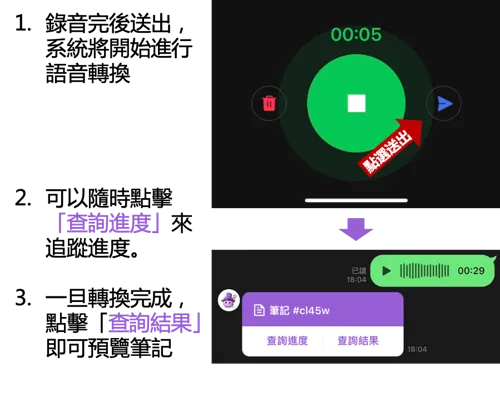
Step 2 — upload the recording to AIMochi (product UI shown in Chinese)
3. Wait for the voice-to-text processing to finish.
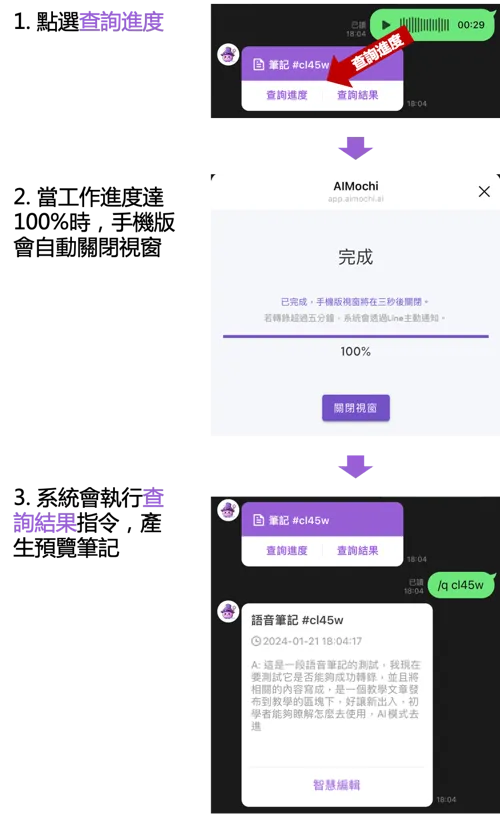
Step 3 — check the transcription progress (product UI shown in Chinese)
2. Building your knowledge base
2.1 Creating a voice note
Whether it is an important meeting discussion or a small detail from your working day, AIMochi lets you record it and turn it into text. Once you have finished recording, just upload it to AIMochi — our advanced voice-to-text technology converts it into clear, readable text.
2.1.1 Using LINE's built-in voice recorder
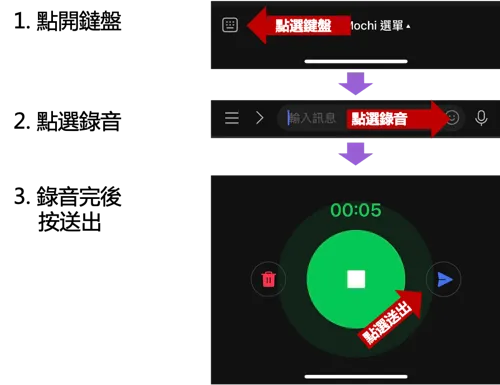
Recording with LINE's built-in voice recorder (product UI shown in Chinese)
2.1.2 Using another recording app
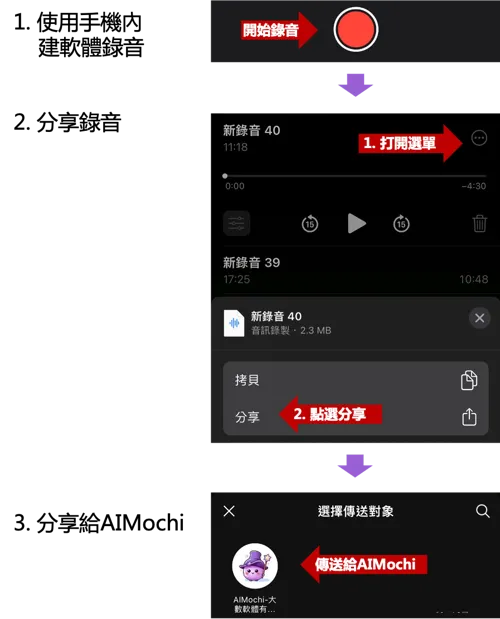
Sending a recording made in another app (product UI shown in Chinese)
2.1.3 Uploading an existing audio file
1. Open the shortcut menu and use the file upload feature
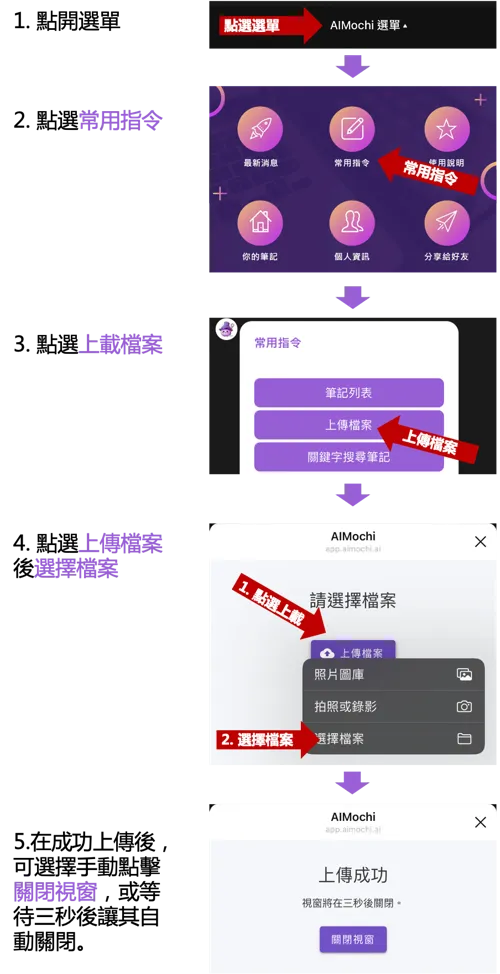
Open the shortcut menu and use the file upload feature (product UI shown in Chinese)
2. On LINE for desktop you can type /upload to bring up the file upload feature
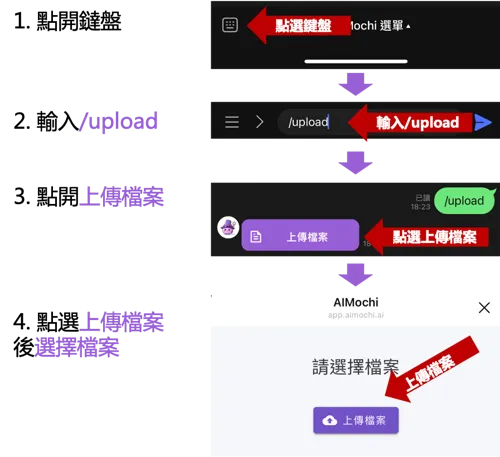
Type /upload on LINE for desktop to bring up file upload (product UI shown in Chinese)
2.2 Creating an image note
Using optical character recognition (OCR), AIMochi reads the text inside an image accurately and turns it into a structured text note.
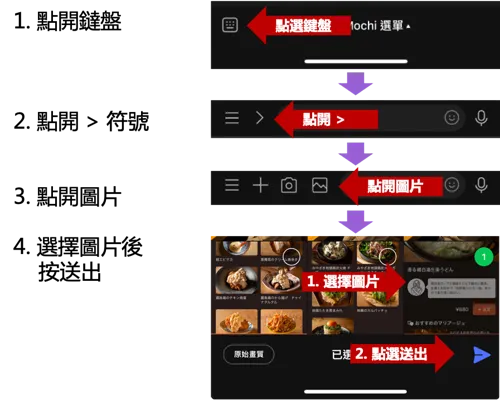
Creating an image note with OCR (product UI shown in Chinese)
2.3 Creating a link note
AIMochi's link note feature turns a web link into a structured personal note — the system extracts the main content of the page for you automatically.
1. Paste the link straight into AIMochi
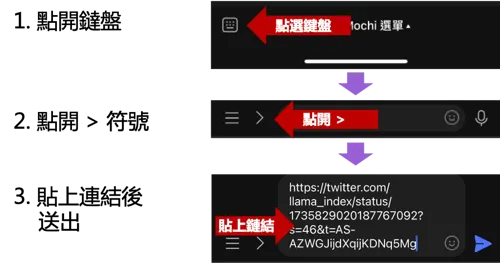
Paste the link straight into AIMochi (product UI shown in Chinese)
2. Or use your device's share sheet to share the link to AIMochi
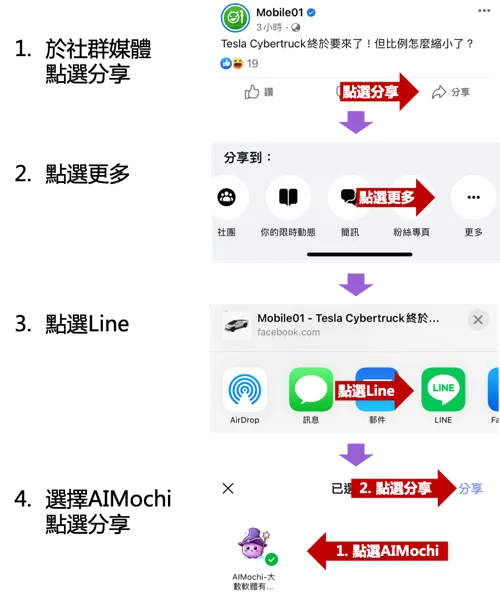
Share the link to AIMochi (product UI shown in Chinese)
2.4 Creating a text note
Turning your work plans, meeting minutes or everyday thoughts into text notes takes only a couple of steps.
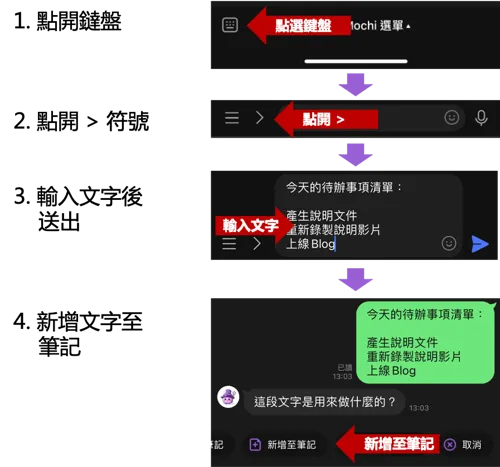
Creating a text note (product UI shown in Chinese)
2.5 Creating a file note (PDF, DOCX and more)
Upload an audio file, a video file or a PDF from your computer to AIMochi and let it generate a note for you.
1. Open the shortcut menu and use the file upload feature
Open the shortcut menu and use the file upload feature (product UI shown in Chinese)
2. On LINE for desktop you can type /upload to bring up the file upload feature
Type /upload on LINE for desktop to bring up file upload (product UI shown in Chinese)
3. Quick editing and sharing
3.1 Viewing a note
After you send or upload something to AIMochi, the system gives you a note button. It lets you check the transcription progress and the result at any time. Once the note is ready, a note preview appears in the chat with its title and content.
Tap Check Progress to see how the transcription is going:
Tap Check Progress to see the transcription status (product UI shown in Chinese)
If the note is finished, tapping Check Result brings up the note preview:
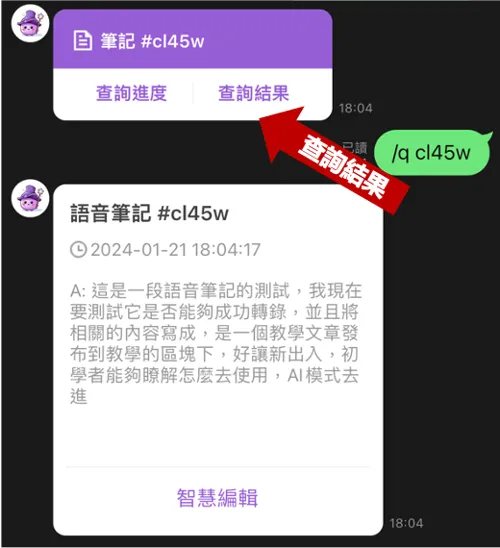
Tap Check Result to see the note preview (product UI shown in Chinese)
If the note is still being processed, tapping Check Result shows a "not finished yet, please try again shortly" message:
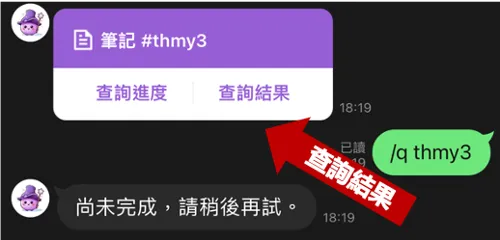
A note still in progress shows "not finished yet, please try again shortly" (product UI shown in Chinese)
3.2 Editing a note
Tap the note title and you will be taken straight to the AIMochi editor (https://app.aimochi.ai), where you can make quick changes or updates.
An example of the editor:
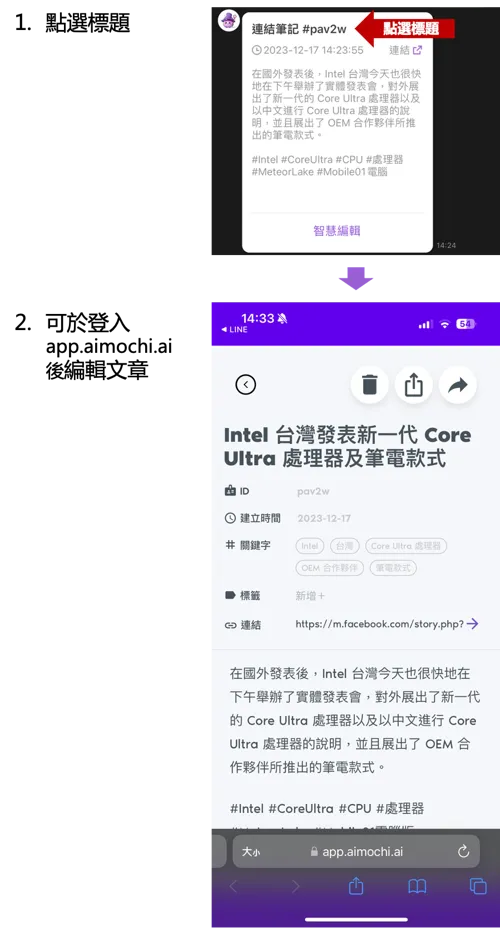
The AIMochi note editor (product UI shown in Chinese)
3.3 Opening a link
For notes that contain an external link, one tap opens the link so you can get to the source quickly.
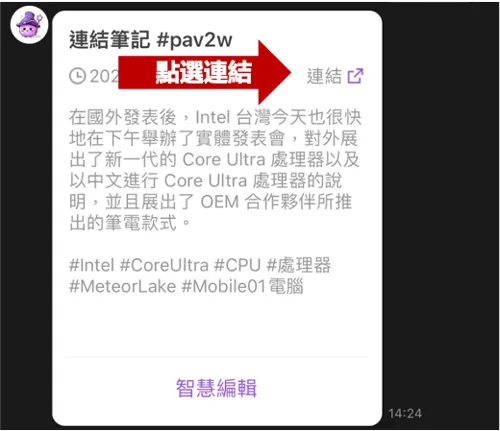
Opening the link stored in a note (product UI shown in Chinese)
3.4 Smart editing
AIMochi also offers smart editing so you can do more advanced things with a note. The individual smart editing features are covered in the sections below.
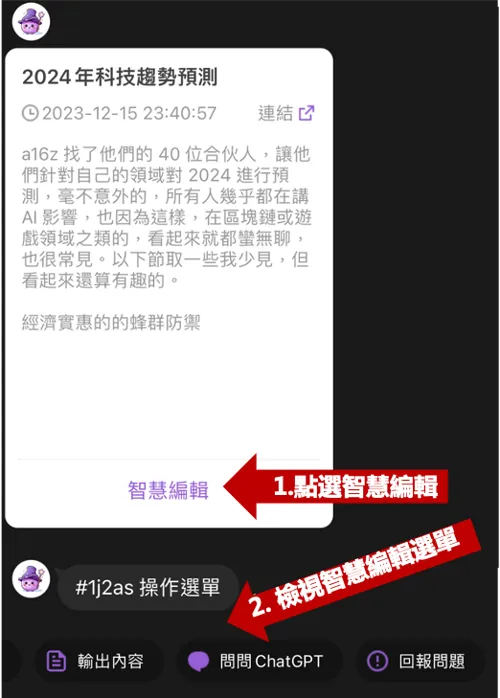
The smart editing menu (product UI shown in Chinese)
4. AI assistant
AIMochi's smart editing features give you a set of advanced tools for analysing and working with the notes you have collected — summarising, translating, asking questions and more.
4.1 Multilingual translation
AIMochi can translate the text in a note into many languages, including Chinese, English, Japanese and Korean. If you need another language, we are happy to help with that too.
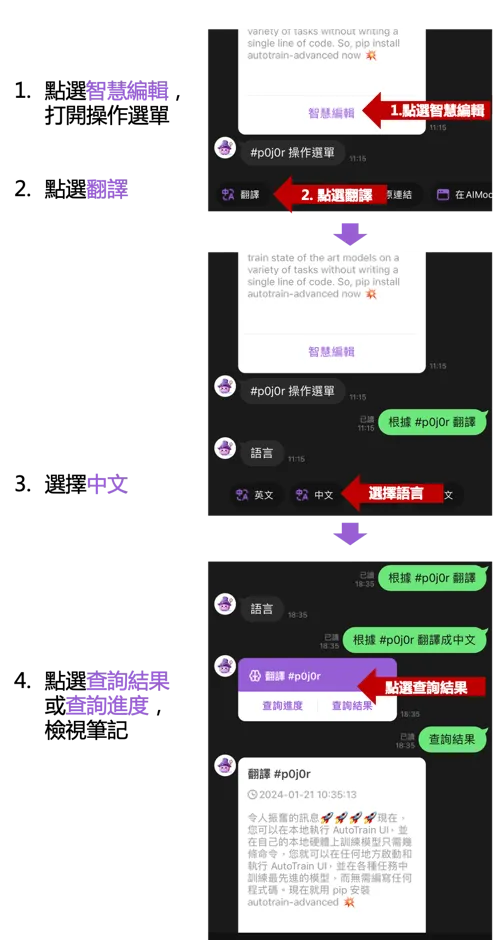
Multilingual translation (product UI shown in Chinese)
4.2 Summary generation
This feature quickly produces a summary of the original note so you can read and understand it faster.
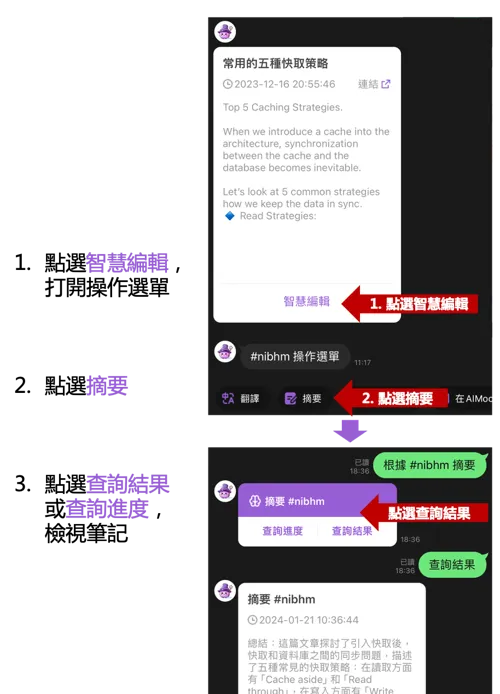
AI summary generation (product UI shown in Chinese)
4.3 Note polishing
Designed for voice and image notes, this feature uses ChatGPT's understanding of meaning to polish the content: it improves recognition accuracy and adds the right punctuation, making the text much easier to read.
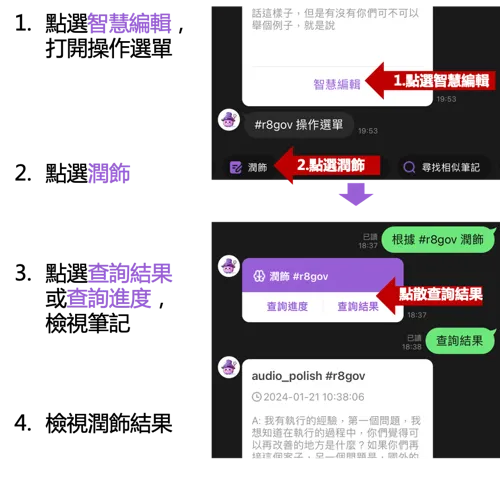
Note polishing (product UI shown in Chinese)
4.4 Finding similar notes
Using semantic similarity analysis, this feature helps you find related notes in your history in seconds.
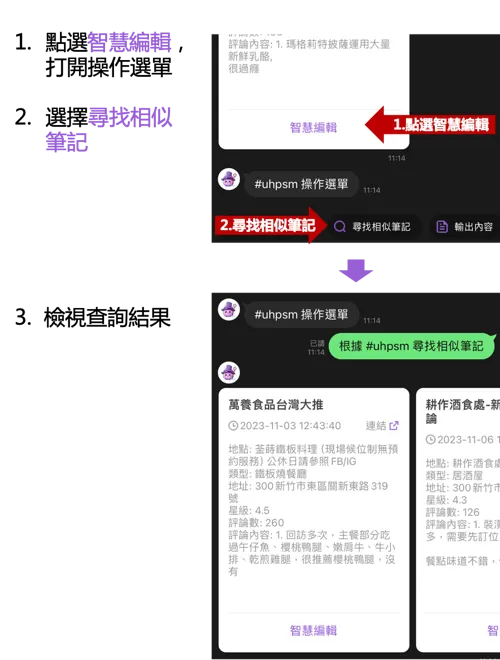
Finding similar notes (product UI shown in Chinese)
4.5 Ask ChatGPT
You can send a note along with your question to ChatGPT. It analyses the content in depth and gives you an organised answer straight away.
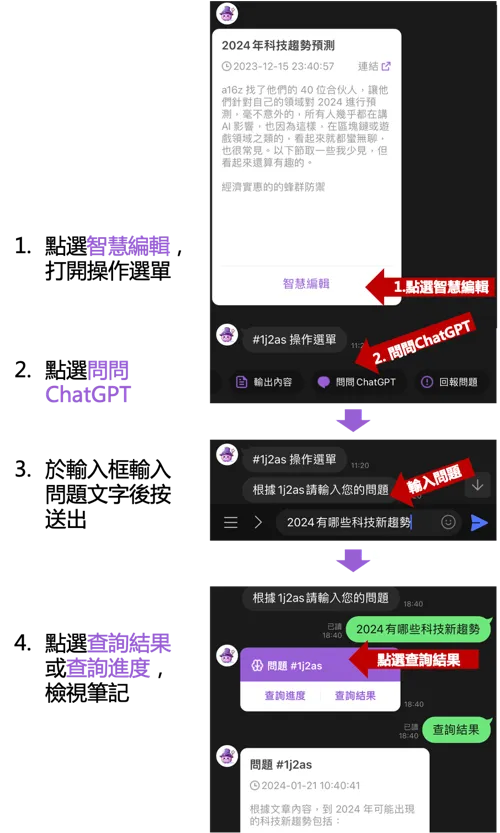
Ask ChatGPT about a note (product UI shown in Chinese)
4.6 Exporting content
You can export the content of a note into LINE. Because LINE limits how much text it displays, we recommend reading longer pieces in the AIMochi editor.
4.6.1 Exporting a regular note
An example of the original content exported straight into LINE
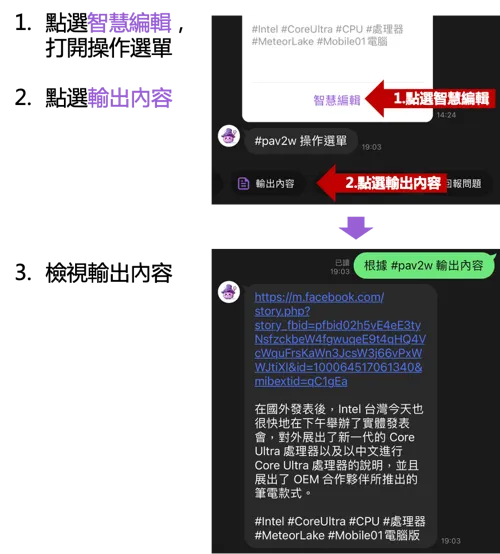
Exporting a regular note into LINE (product UI shown in Chinese)
4.6.2 Exporting a voice note
Voice notes can be exported in three formats: one sentence per line, merged paragraphs, or a subtitle file
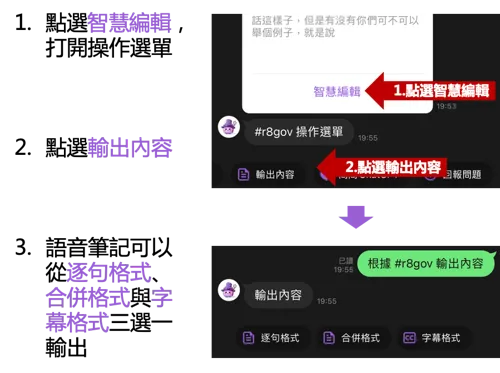
The three voice note export formats (product UI shown in Chinese)
a. One sentence per line
Each sentence is shown on its own
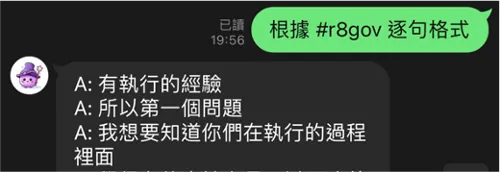
Export format: one sentence per line (product UI shown in Chinese)
b. Merged paragraphs
Everything said by the same speaker is merged together
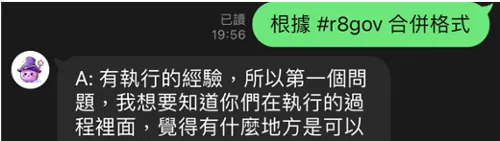
Export format: merged paragraphs (product UI shown in Chinese)
c. Subtitle file
Exported as a subtitle file, complete with timestamps
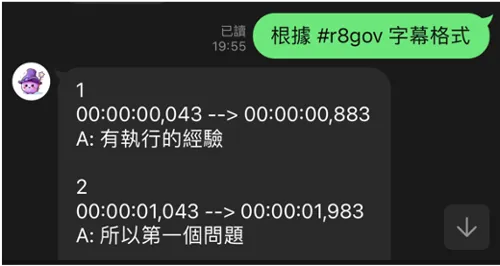
Export format: subtitle file with timestamps (product UI shown in Chinese)
4.7 Opening the original link (link notes only)
This feature lets you open the original link straight from the note.
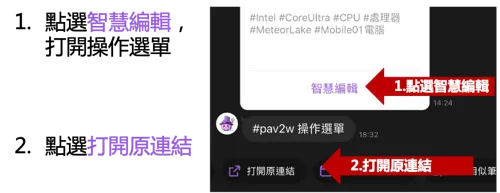
Opening the original link (product UI shown in Chinese)
4.8 Edit in AIMochi
This takes you into the AIMochi editor, where you can read or edit the note.
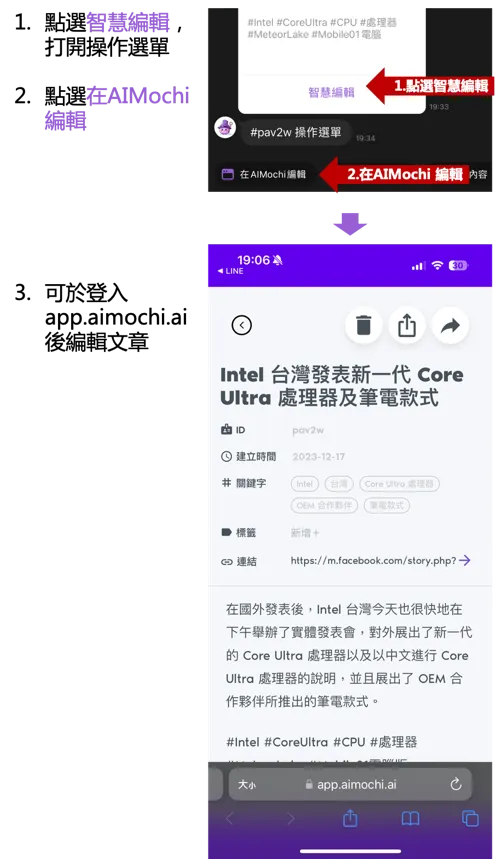
Edit in AIMochi (product UI shown in Chinese)
4.9 Reporting a problem
If something looks wrong in a transcript, use this feature to let us know — the details help us look into it and improve the service.
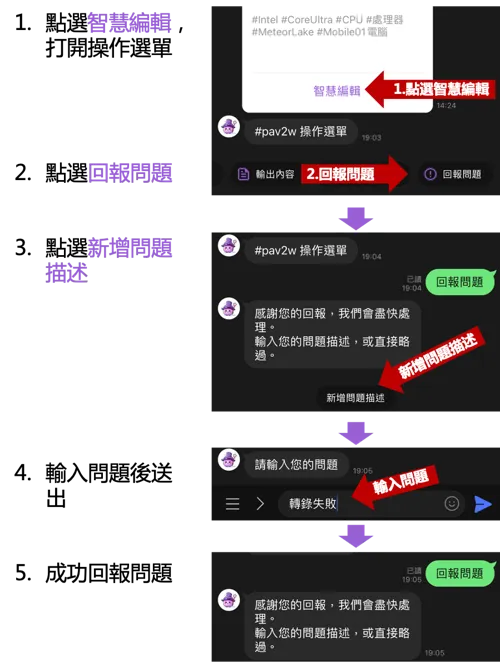
Reporting a problem (product UI shown in Chinese)
5. Smart search and Q&A
AIMochi's smart search and Q&A features make it far easier to find what you need among a large pile of notes. With them, your note library becomes a personal knowledge base — a second brain you can query and talk to.
5.1 Keyword search
Type in a keyword and the system pulls out the notes that match it most closely.
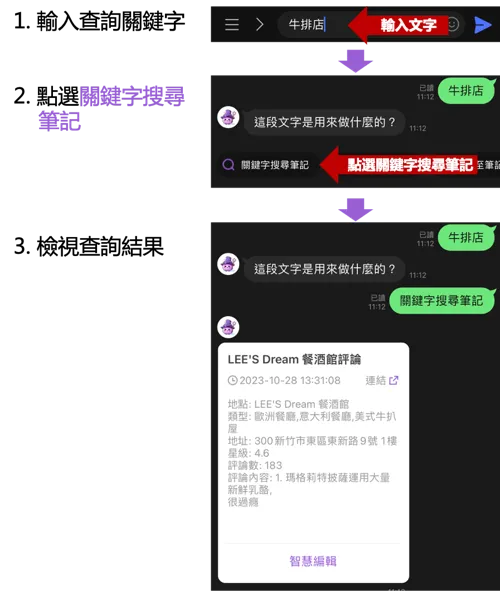
Keyword search (product UI shown in Chinese)
5.2 Smart search
Smart search goes further than ordinary keyword search: it understands natural-language queries. You can look for voice notes from a particular date range, for example, or for link notes that mention a specific topic such as artificial intelligence.
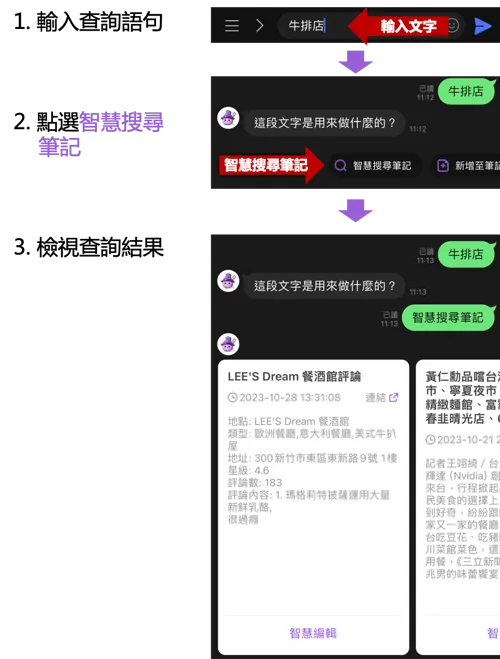
Smart search with natural-language queries (product UI shown in Chinese)
5.3 Asking your notes a question
This feature turns your notes into an interactive knowledge base. Ask it anything: AIMochi finds the most relevant material in your notes and combines it with a large language model to generate the answer.
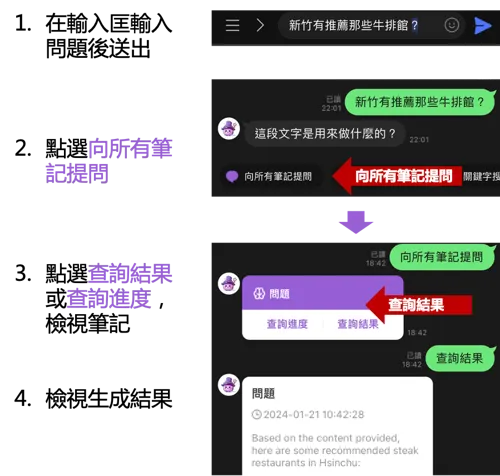
Asking your notes a question (product UI shown in Chinese)
Want to know more? See the FAQ, the points guide, or the glossary of voice-to-text terms.